

This tutorial will guide you through the process of setting up a new account for teams within FormTopify, including adding a new company and configuring its settings.
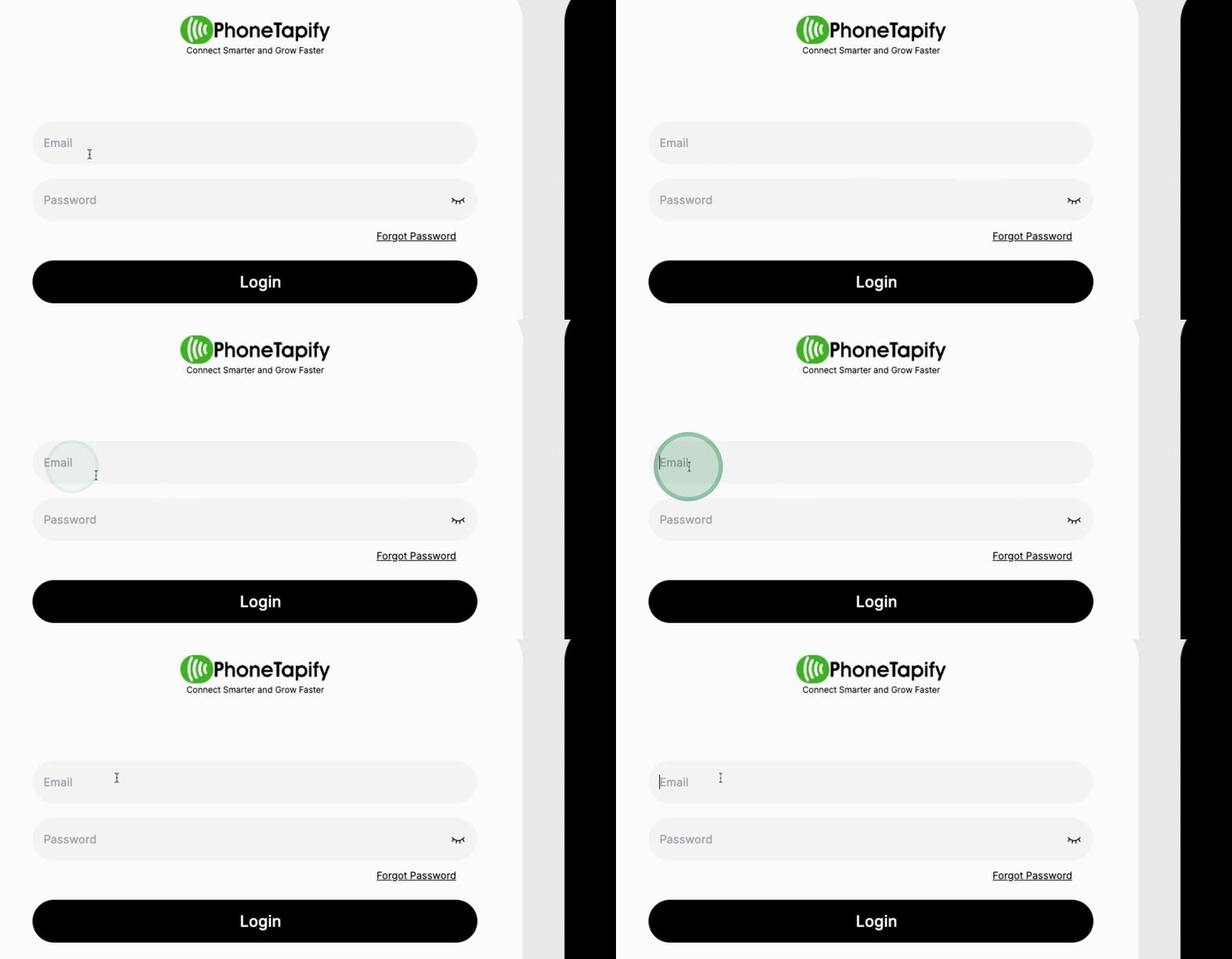
Begin by logging in as the admin FormTopify. You will need to use the same admin login information to access the dashboard.
Proceed to add a new company. In this example, we will add a company named Emerald House Group.
Before adding the new company, it's necessary to create a new tag for it. Name the tag as Emerald House.
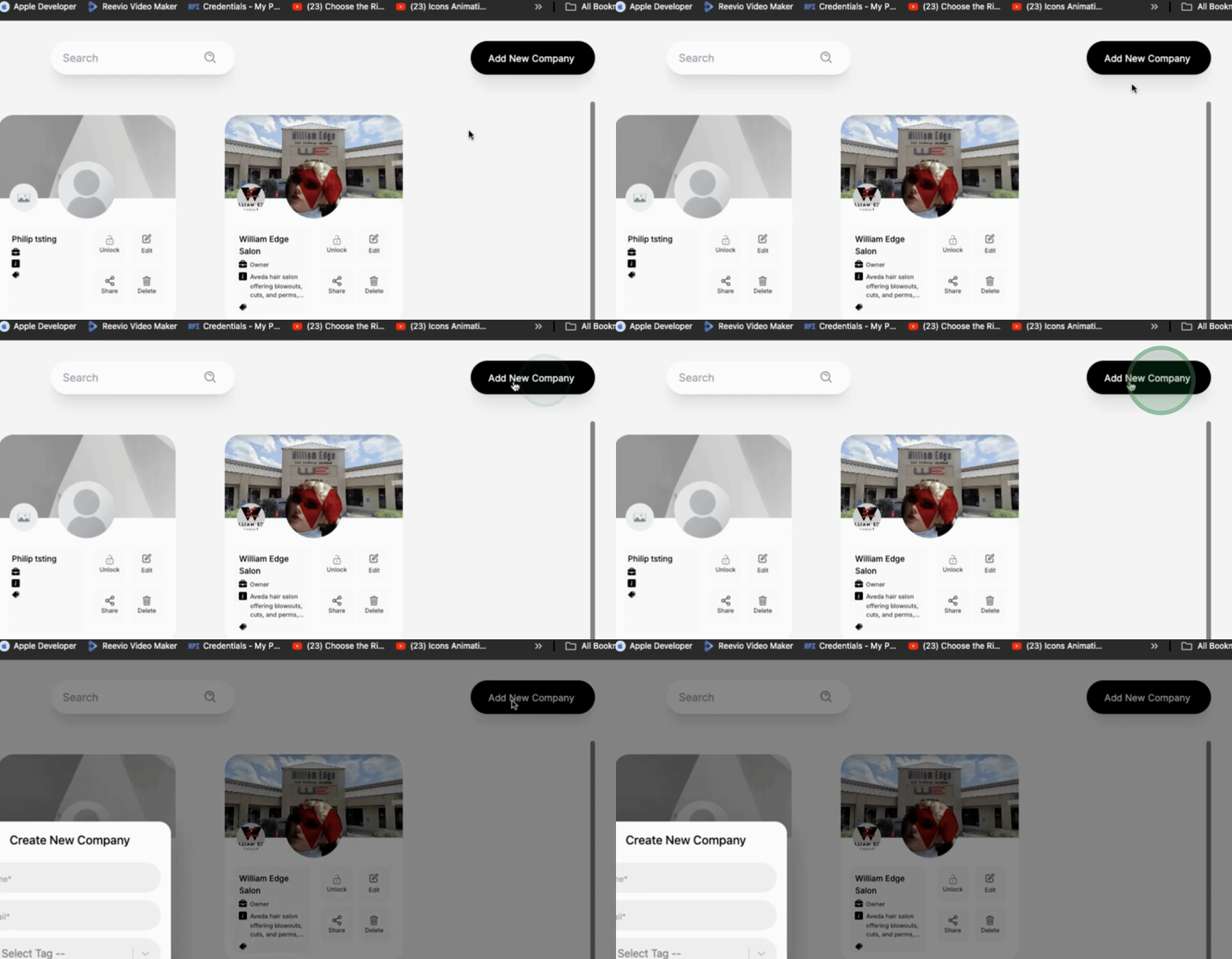
Now save the tag and navigate to teams to add the new company. Enter the company name as Emerald House.
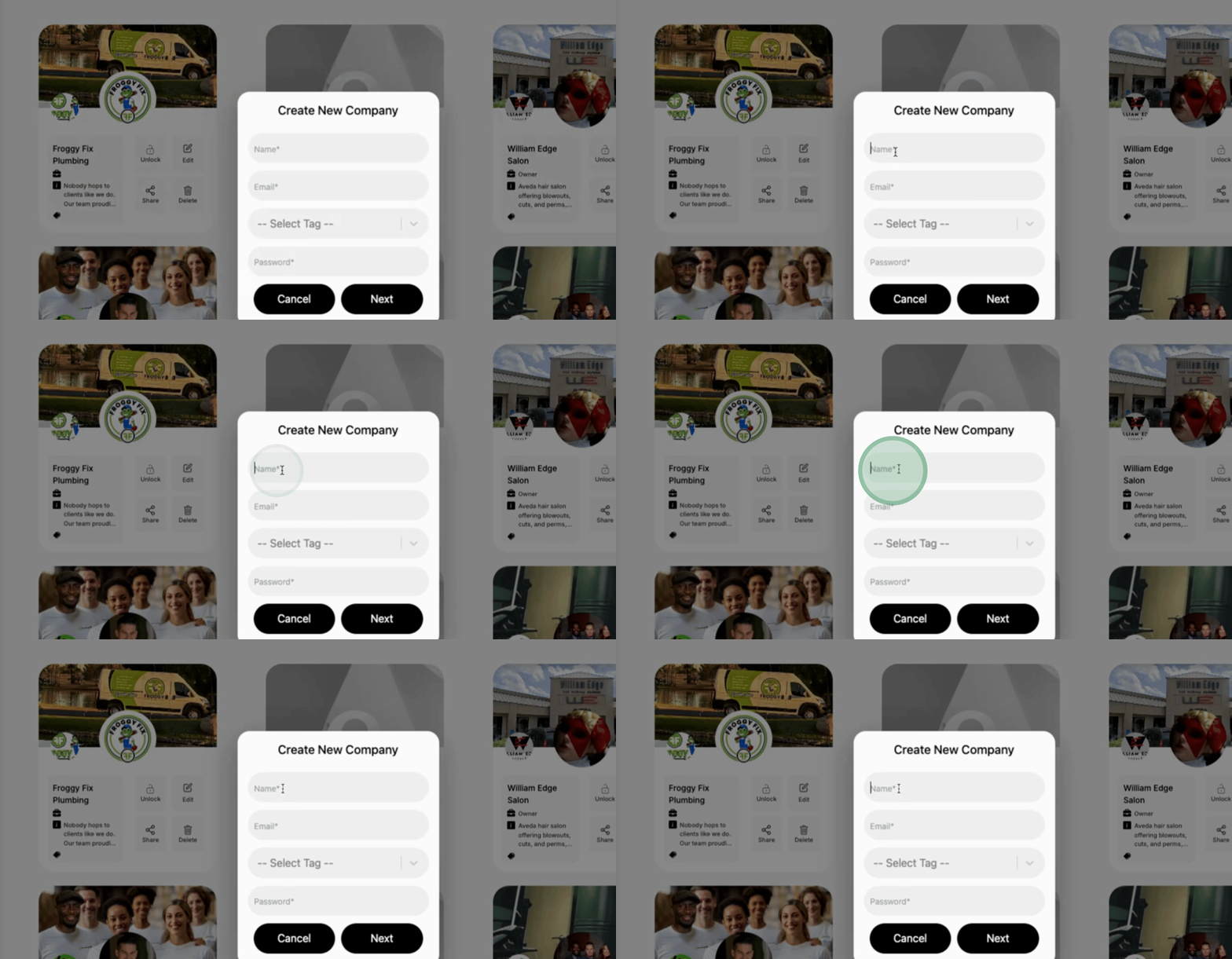
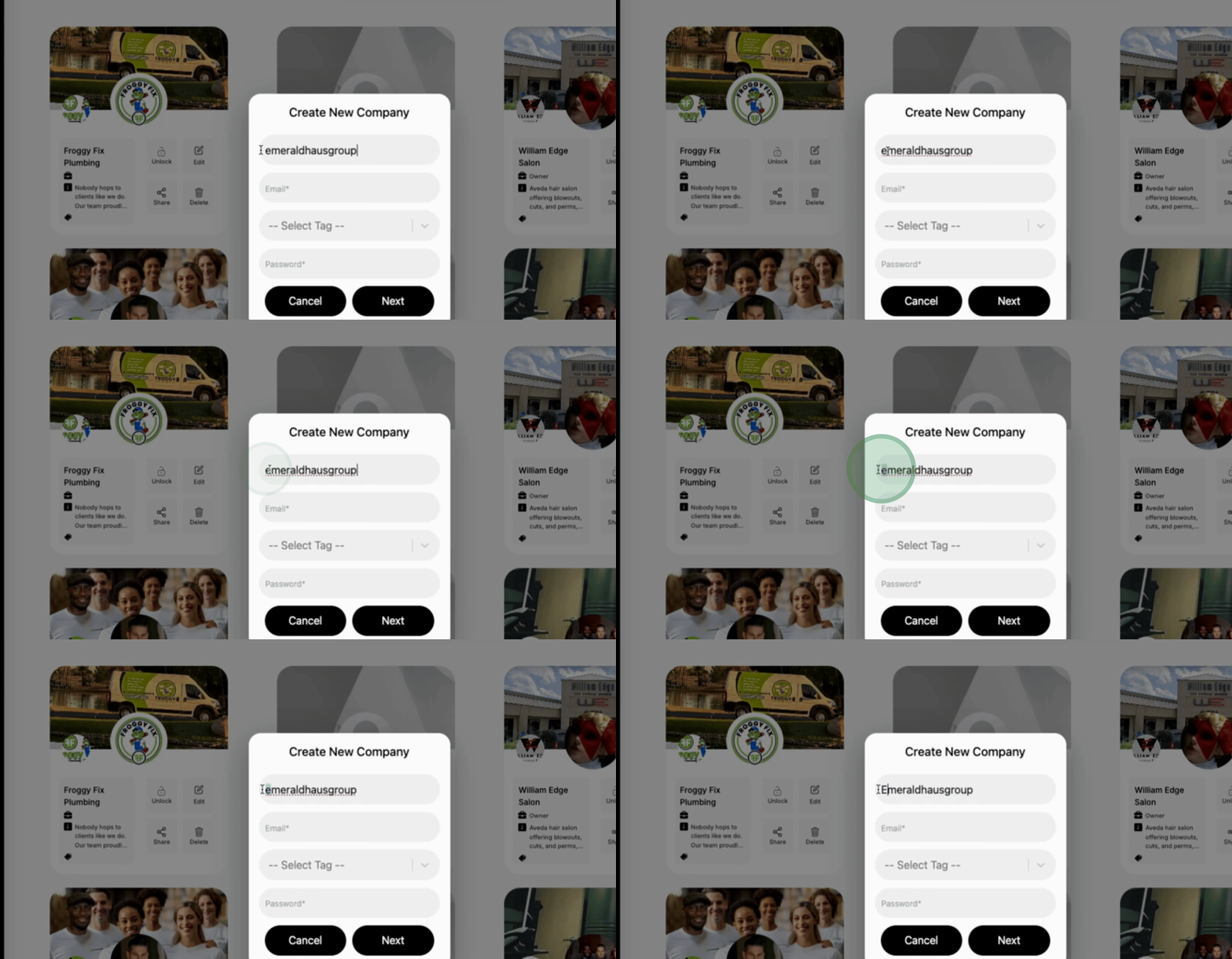
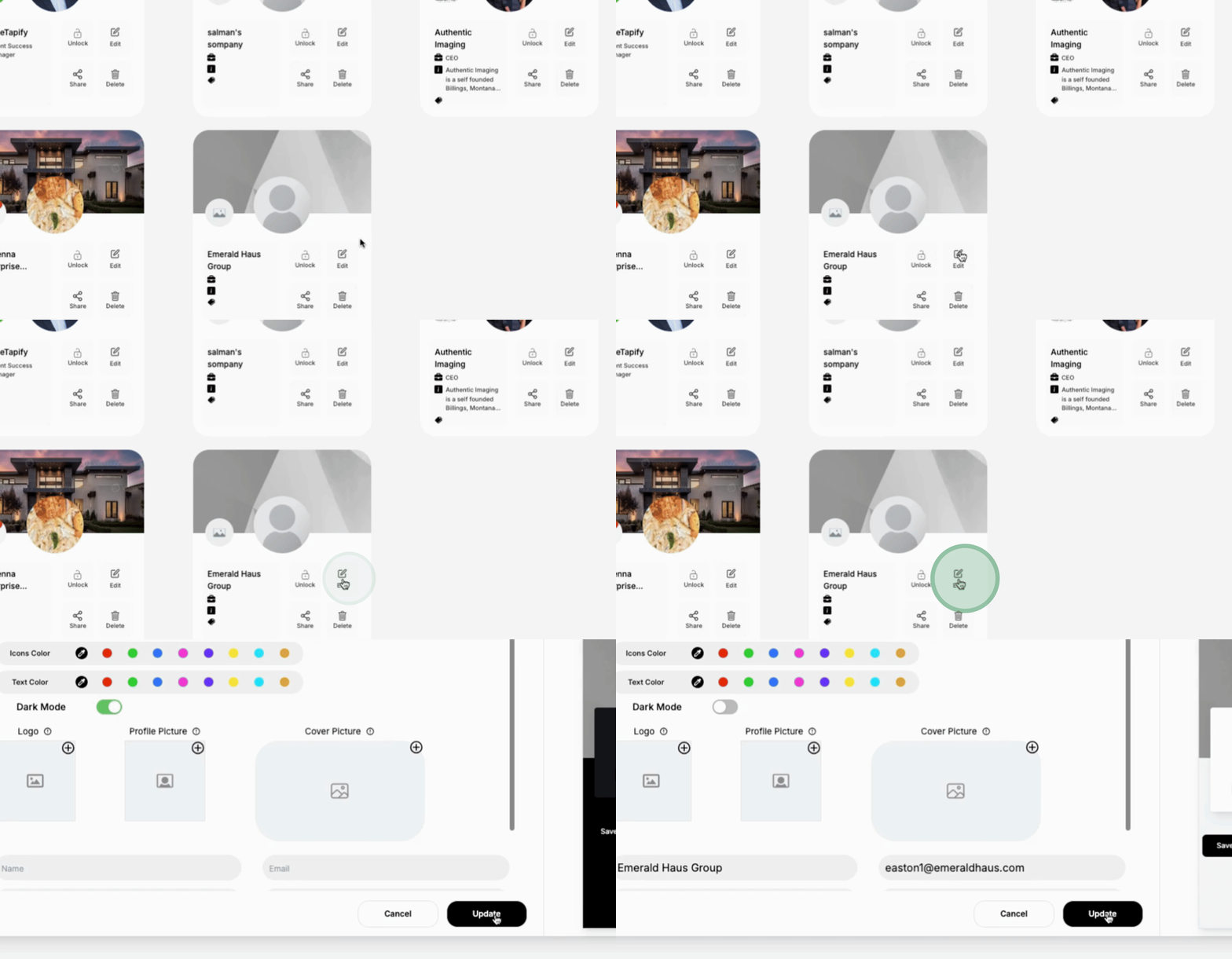
Ensure that the full company name is Emerald House Group and provide an Email address for the account.
Select the tag you previously created by searching for Emerald.
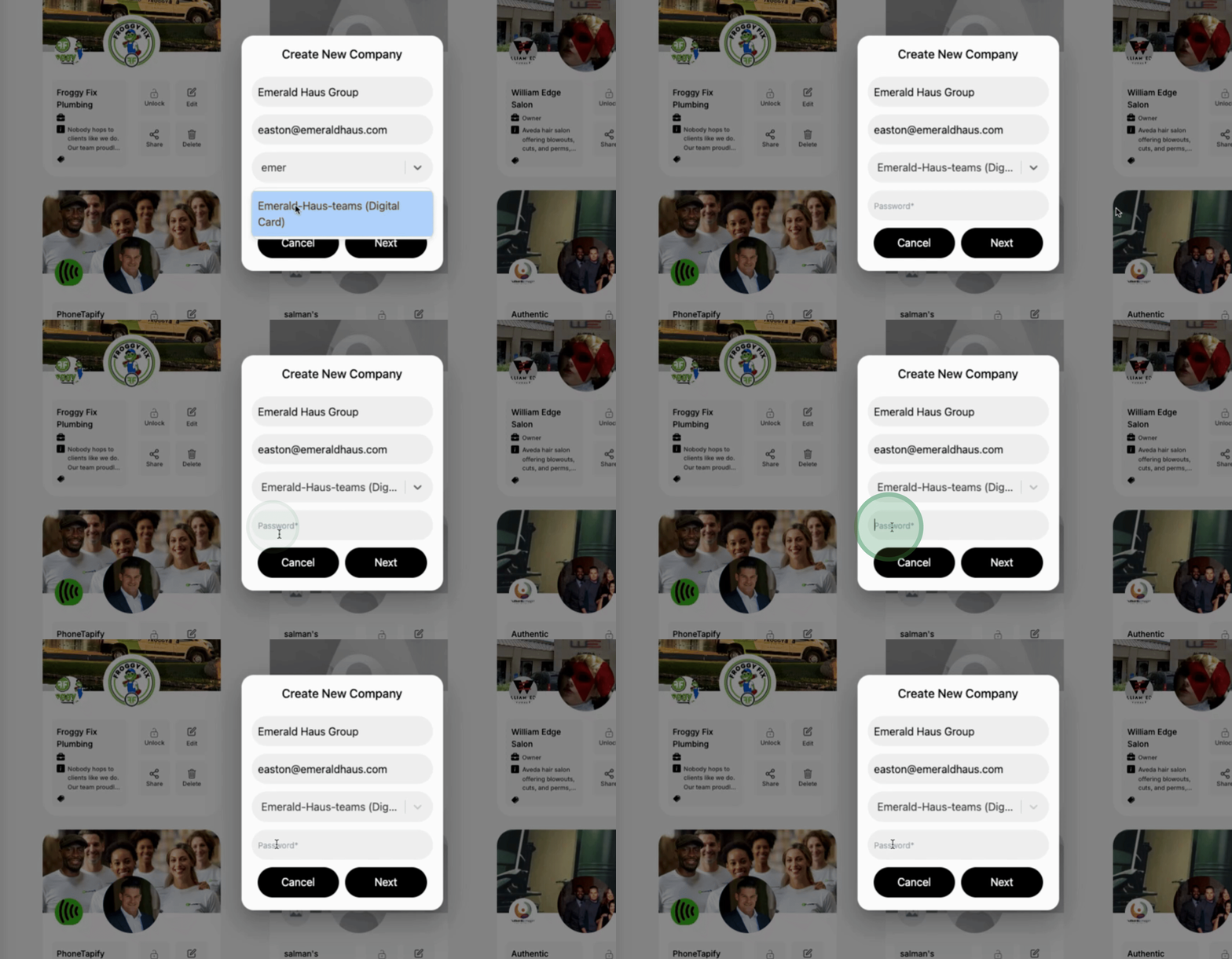
For the Password, use PT 2024 shift which is the standard password for new accounts.
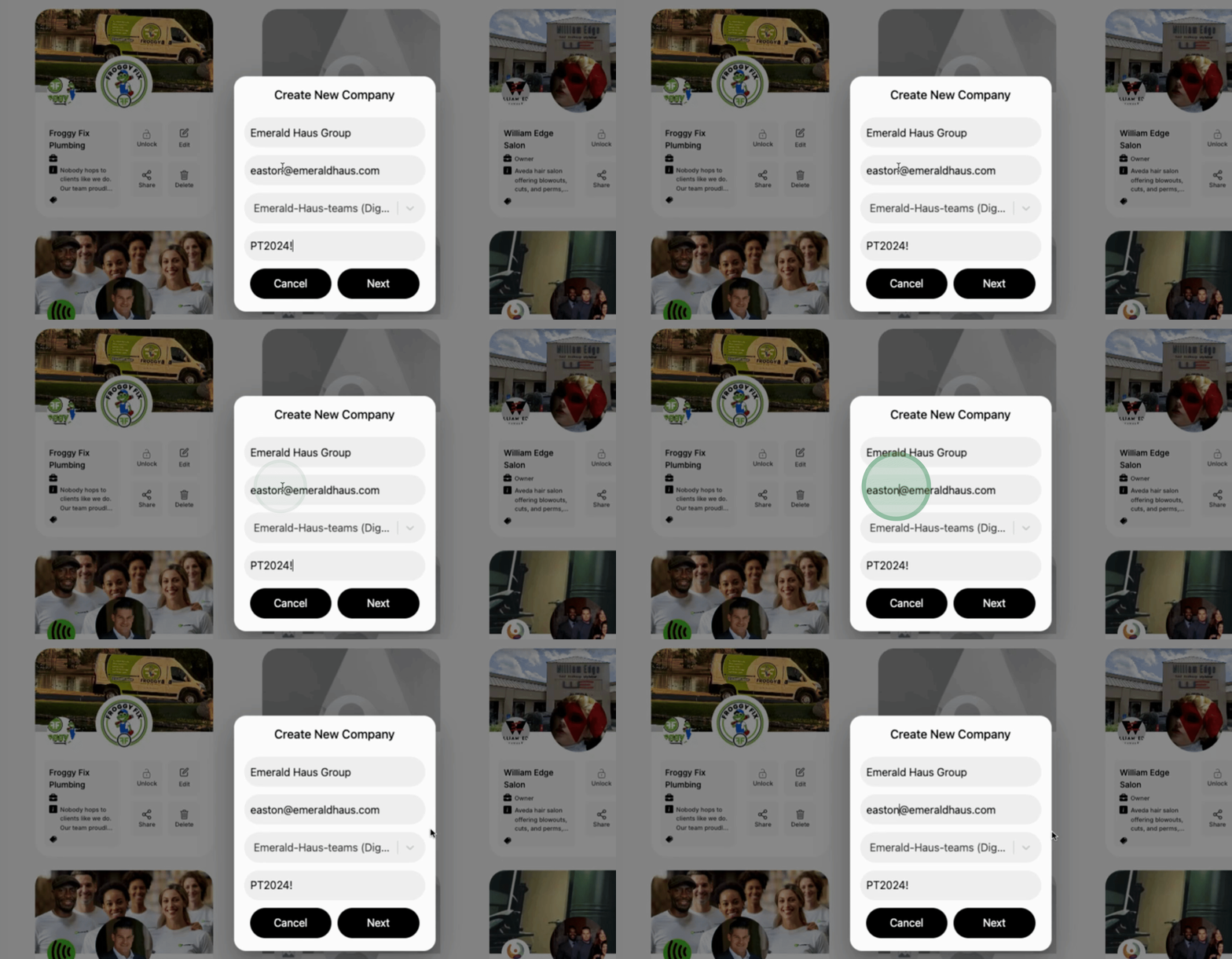
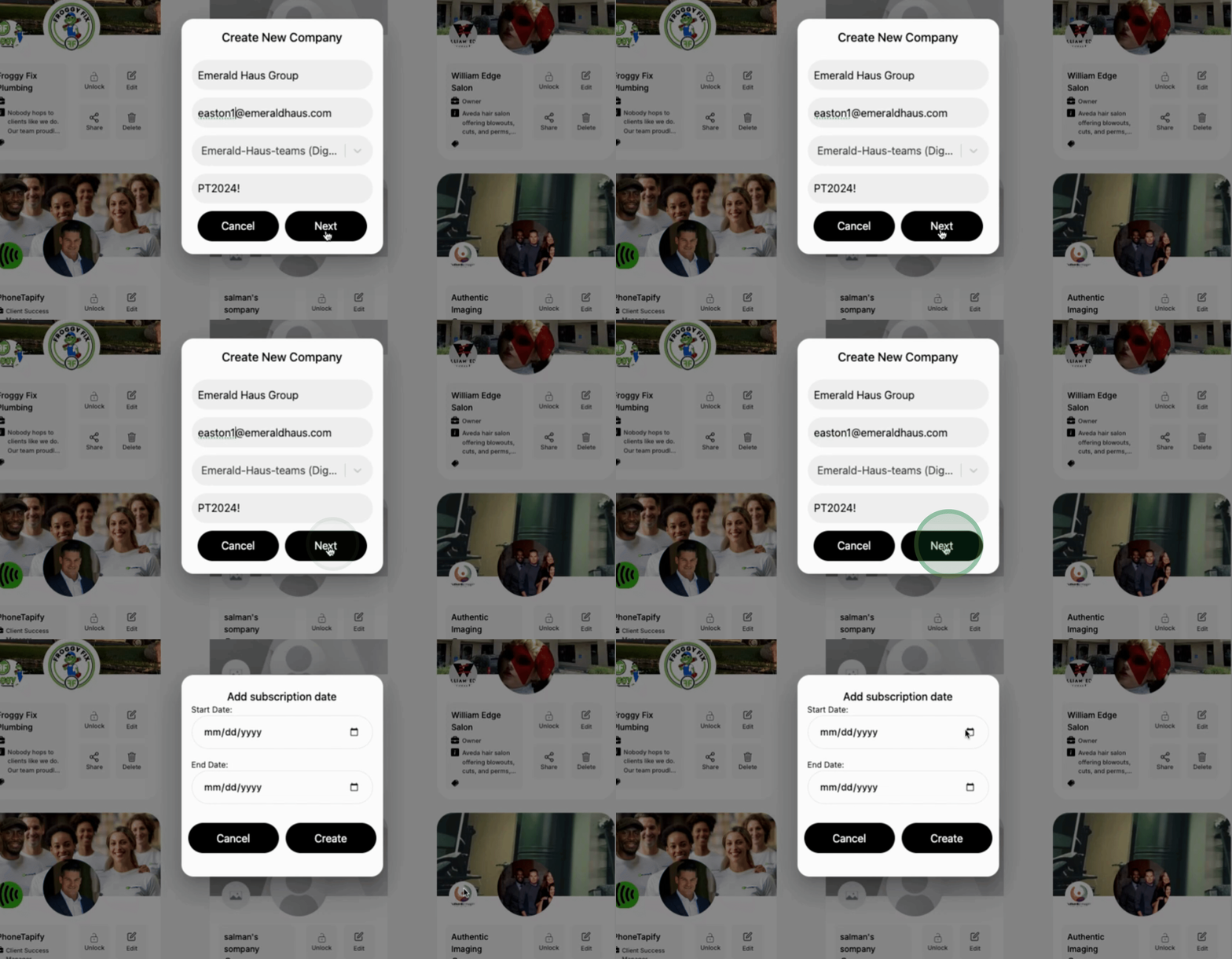
Click next and select today’s date, setting the account duration to approximately 10 years. Finally, select create.
Once the account has been created, Emerald House will be available for you to add additional features.
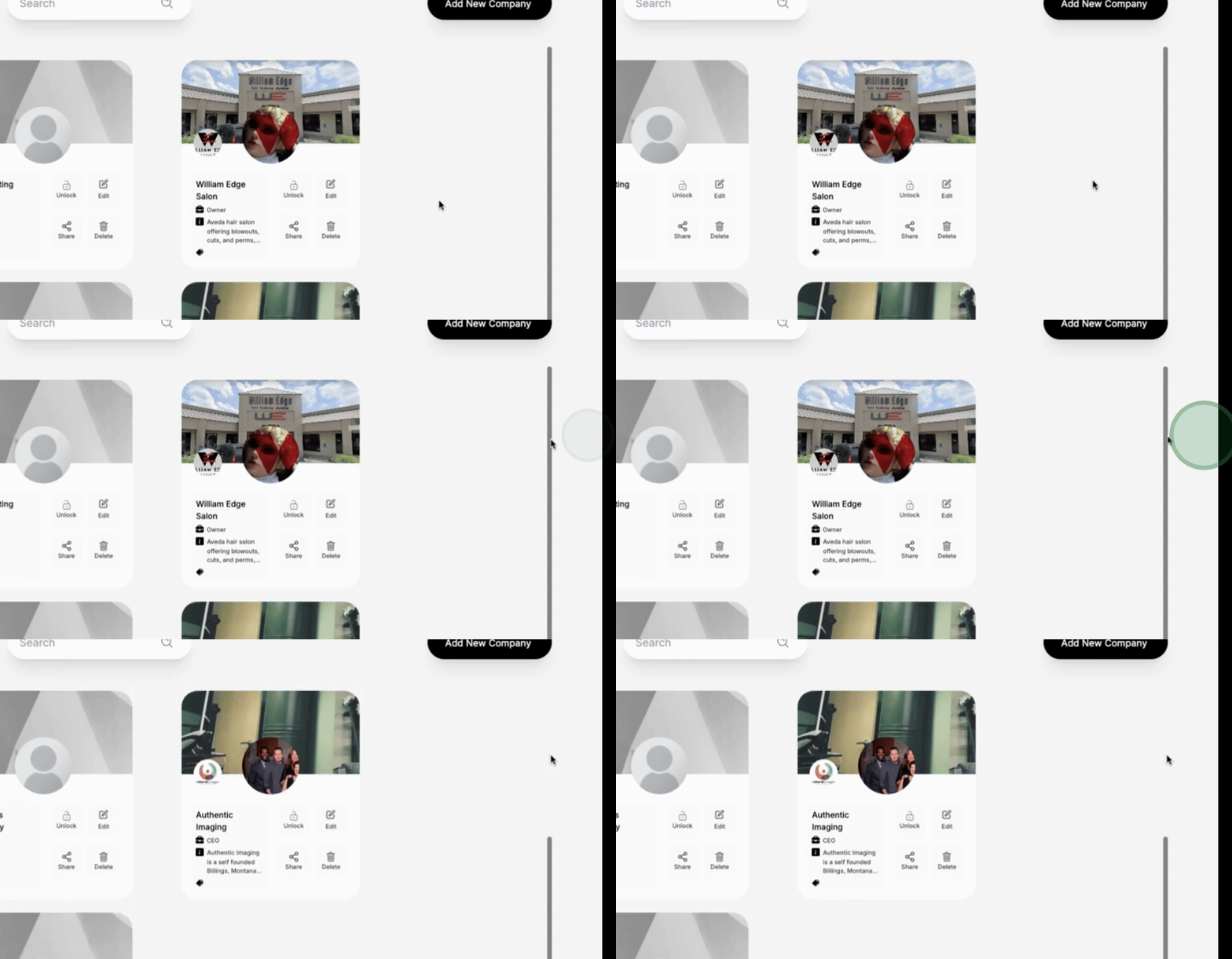
You can update the company information by adding elements such as their logo and profile pictures.
Following these detailed steps will allow you to successfully set up a new account for teams in FormTopify and configure it accordingly.
